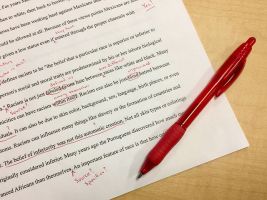
Ask the Experts: Tips for Self-Editing

 As many of you know, I have been hard at work on my first novel. Currently, my focus has been on getting the story down and for once, have not disappeared down the rabbit hole of editing while I write, although the temptation has been great. After more than two years, I finally can see the end in sight and couldn’t be more excited!

I do plan to hire an editor for this novel, but in the meantime, I will clean up some of the apparent errors.  As a practice, I use three-four editing tools for all my work, and I must say, I find them an essential tool in my writing.

  1. The Writer’s Diet is one of the first tools I use. A free resource, this tool provides an overview of your writing. Insert 100-1000 words to find out if your is writing is lean or flabby.
  2. The Hemingway Editor  – available for both MAC and Windows, provides an incredible array of convenient tools:
  • Use it anywhere;  even without internet connection.
  • Format your prose
  • Publish directly to WordPress & Medium
  • Export to Microsoft Word or other editors – a New feature
  • Send Hemingway highlights to colleagues –  a New feature

3. Grammarly –  an excellent grammar, punctuation, and vocabulary tool.

4.  Autocrit – A manuscript editing software, specifically for fiction writers.

These are my tips, but, since I’m still learning, I checked with the experts.

Jacqui Murray offers specific and detailed tips in her article, 19 Self-editing for Your Writing.  Tips include:

  • eliminating weak/waste  words – very, was, it, but, just;
  • eliminate redundancies and word repetition, and as many dialogue tags when possible.
  • Limiting adverbs, gerunds, qualifiers, prepositional phrases,
  • Secure place and time in each chapter; verify timeline.
  • Change passive to active words and phrases.

To read more from Jacqui and get the details, as well as other resources she can recommend, check out her article.

Other resources you might want to check out, include:

What about you? Do you have some advice for this writer on self-editing? I’d love to hear all about it.  I’m all ears and look for me on Facebook at SheilaMGood,  PinterestBloglovinTwitter@sheilamgood, Contently, and Instagram. You can follow my reviews on Amazon and Goodreads.

Catch Mistakes Before You Submit

Have you ever submitted a story or article only to discover later, mistakes you missed?

Me too, and more often than I care to admit. If you could use a little help, check out this article from  Autocrit on identifying mistakes before you hit the send button.

Catch More Mistakes with These DIY Proofreading Techniques.

Photo: LinkedIn

I’d love to hear your thoughts on the subject. Join the conversation. Talk to me or tell me your story. I’m all ears.

EDITING 101: 02 – Description Depression…

Descriptions, like backstory can be difficult for writers. When and how to introduce a character, setting, or motivation, if not done well comes across like a glob of information dumped in the middle of the page. When this happens, the readers often skips ahead or stops reading.

Chris the story reading Ape, does a great job discussing descriptions in the post below. Be sure to let him know you like it.
Also, for additional help with descriptions, check out the Physical Feature Thesaurus and The Urban/Rural Settings Thesaurus at http://writershelping writers.net.

Thanks Chris!

Chris The Story Reading Ape's avatarChris The Story Reading Ape's Blog

Originally posted as the Dun Writin’—Now Whut? series on this blog, EDITING 101 is a weekly refresher series for some of you and brand new for others.

Courtesy of Adirondack Editing

 Do You Have Description Depression?

Are you a writer who uses rich, lush descriptions for their settings and characters? Or one who just wants “the facts, Ma’am, just the facts”? Is it an effort to decide how much description to use, where, and exactly what?

If you struggle with Description Depression in your writing, you’re not alone. There isn’t a “correct” way to use description in fiction, although, in my humble opinion, you’re better off using too little than too much.

In over describing, a writer runs the risk of annoying their readers. Many readers admit to skipping over large amounts of description. It didn’t used to be that way. Before the age of movies, television, the Internet, and smartphones…

View original post 486 more words

How to Use Your Kindle Device for Easy Editing

Editing is a daunting and necessary task for writers. Often I find myself reading and re-reading a piece until the words blur. I let the story rest, read it aloud, and run it through editing programs, but after so many times, it’s easy to become immune to errors that may be glaring to our readers.  I have, however, discovered a trick that helps me avoid overlooking mistakes – I send the piece to Kindle.

As I listen to the mechanical voice read my work, I’m amazed at the things I missed or new aspects I notice. It might be grammar errors, the way a sentence flows, or even story continuity; yet, this simple technique provides me with a different perspective. Highlighting the things I want to change with notes and comments, I can then return to my manuscript and make the necessary corrections.

How to Send to Kindle:

The these easiest way to do this is to use the Send to Kindle App.

Sign up or sign in to your Amazon Account. sendto-Kindleapp-compressor

1. Add you Kindle device to your account if you haven’t already.

2. Your device will automatically associate with a Kindle email: @kindle.com. You can find this email by going to the Manage my content and Devices and click on your device. Remember, you will need to use the email account associated with your Amazon account.

3. Download the Send to Kindle App. I keep my app on the dock for easy access.

4. Take your WORD, PDF, or Mobi file and drop it onto the app. Minutes later, the document will appear on your Kindle.

5. Use Notes and Comments to highlight issues. Press and hold the word, text, or an image to create notes or comments for use in editing.

There you have it, an easy way to edit via your Kindle. Have you found a method to make editing easier? Share with us.

I’d love to hear your comments. Talk to me. Tell me your story and look for me on Facebook at SheilaMGood,  PinterestBloglovinTwitter@sheilamgood, Contently, and Instagram. You can follow my reviews on Amazon and Goodreads.